Updates install over Wi-Fi. Power the unit off, look at the screen it leaves behind, and choose the picture that
matches. The steps below change to fit that unit.
Charge with a USB-C source until the battery is at least 80%. Below
that, the unit refuses the update and shows Battery too low (it is not sufficient to simply plug in the device; the battery level must be at least 80%). Press the Split button to
leave that screen, charge, and start again.
Have a phone and the password for a Wi-Fi network that can reach the internet. The unit downloads the
update itself.
Set the unit on a table for the download. Leave it alone while the screen says Installing update. The
display refreshes slowly, so the percentage may sit still for several seconds at a time.
Your settings and the registered name stay on the unit.
What does the power-off screen show?
A battery indicator is a percentage, such as 72%, beside a battery icon. Newer units can also show
Charge recommended beside a plug icon when the battery is low. That reminder is separate
from the battery indicator.
Choose one of the pictures above. The update steps will appear here.
Walkthrough
This video shows the update on a unit that still has a battery indicator (firmware 1.2 and below).
Start the update
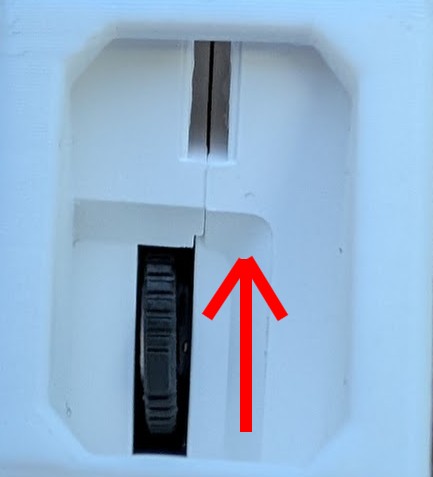
On this unit, hold the scroll wheel up while it powers on.
Power the unit off and wait until the power-off screen has finished drawing.
Rock the scroll wheel upward and hold it there.
While still holding the wheel up, press the Power button. Keep the wheel rocked up. The
display may keep showing the power-off screen during the hold.
Hold for about five seconds, until the screen says Firmware Update and
Release button. Then let go.
If you release early, the timer starts as usual. Power off and try again. If the battery is under 80%, the
next screen says Battery too low and Need 80%+ to update. Press the Split button, charge,
and start again.
Start the update
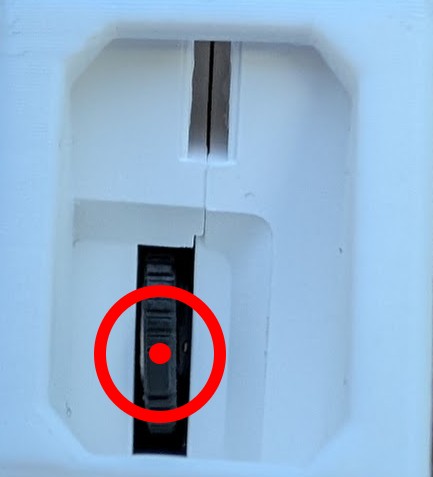
On this unit, hold the scroll wheel pressed in while it powers on, then choose OTA Update
from the mode list.
Power the unit off and wait until the power-off screen has finished drawing.
Press the scroll wheel straight in and hold it. This is a push, not a rock up or down.
While still holding the wheel in, press the Power button. Keep holding the wheel. The
display may stay on the power-off image for a moment. That is normal.
After a short hold the screen says Hold wheel / for modes. Keep holding
until a list titled Mode appears. That is about one second from when you started
holding.
Let go of the wheel. Rock it up or down until OTA Update is highlighted, then press the
wheel straight in.
If you let go before the list appears, the timer starts as usual. Power off and try again. From the mode
list, the Power button turns the unit off without starting an update.
Connect to Wi-Fi
The screen says Connecting to Wi-Fi... when the unit already knows a network. If that
network is in range and has internet, it moves on to checking for updates and you can skip the phone.
Otherwise the screen says Firmware Update, Join: HSP- followed by the
unit’s serial, and Configure Wi-Fi on phone.
On your phone, join the Wi-Fi network with that exact name. A setup page titled
WiFiManager should open, with that same network name under the title. If it does not
open, go to 192.168.4.1 in the phone’s browser while joined to that network.
Tap Configure WiFi. (Do not tap Update)
The next page lists nearby networks. Tap your network so the
name fills in, enter its password, and tap Save.
The page then says Credentials saved and Trying to connect ESP to network.
Wait there. The unit stores the network and continues on its own.
The setup network stays up for about three minutes. If the page says the connection failed,
or the unit says Wi-Fi setup failed, rejoin HSP- and your serial and press
Configure WiFi again. Press the Split button on the unit if it has already
returned to the timer, then start the update again. The network you pick has to reach the internet.
Connect to Wi-Fi
The screen says Connecting to Wi-Fi... when the unit already knows a network. If that
network is in range and has internet, it moves on to checking for updates and you can skip the phone.
Otherwise the screen says Firmware Update, Join: HSP- followed by the
unit’s serial, and Configure Wi-Fi on phone.
On your phone, join the Wi-Fi network with that exact name. A setup page titled
Hog Splitter Pro should open, with the line Connect this unit to Wi-Fi. If it does not
open, go to 192.168.4.1 in the phone’s browser while joined to that network.
Choose your internet Wi-Fi network, enter its password, and save. The unit stores it for next time.
The setup network stays up for about three minutes. If the screen says Wi-Fi setup failed,
press the Split button and start the update again. The network you pick has to reach the
internet.
Choose and install
The screen says Checking for updates..., then a list titled Firmware.
The version already installed is shown under that title.
Rock the wheel to move the highlight. Press the wheel in to open an entry. The
Split button leaves the list and cancels the update.
The next screen says Install and shows that entry’s version. It also says Same as
installed or Older than installed when that applies. Press the wheel in to install. The Split button goes
back to the list without changing anything.
The screen says Installing update, with a percentage and a bar. Leave the unit alone
until it says Update complete and Rebooting.... It restarts on the new
firmware.
If more than one entry is listed, install the one you were asked to use. An entry that mentions a new
registrant name writes that name as part of the same update.
If it stops
A message such as Wi-Fi setup failed, Time sync failed, Update check failed, No firmware yet, Update
cancelled, or Install failed waits for the Split button. The unit then returns to the
timer. Nothing is switched over until the screen has said Update complete.
Battery too low — charge past 80% and start again.
Wi-Fi setup failed — rejoin HSP- and your serial, and confirm the password.
Time sync failed or Update check failed — the network needs internet access, not only a local
connection.
The percentage stops moving for a long time — e-paper redraws about every five seconds. Wait unless the
screen has changed to a failure message.